How to Open a Merchant Account
Account opening, initial cost, and fees are free
What You Need to Prepare for Opening
To open a merchant account, you will need documents for KYC (identity verification) and corporate verification. Please prepare these in advance before applying. Even if you already have a personal account, a new registration is required if you wish to open a merchant account.
Submission of Identity Verification
For merchant accounts, you will need to complete Opera’s KYC process online. This is not the same as the eKYC tool used for personal accounts, but rather follows a merchant-specific KYC flow.
Identity verification documents of the representative (with photo)
Please submit one identity verification document. Submit either a photo taken with a smartphone or a scanned copy. (Accepted formats: GIF, JPG, PNG, PDF)
ID Selfie
An ID selfie is a method that enables identity verification similar to face-to-face verification online. As shown in the sample photo, take a picture where both your ID document’s photo side and your own face appear clearly in the same image. Make sure that both the text on the document and your face are clearly visible.
Corporate Verification Documents
Submit one of the corporate verification documents issued within the last 6 months. Ensure that the text on the document is clear and readable.
Wallet Opening Procedure
Account Opening
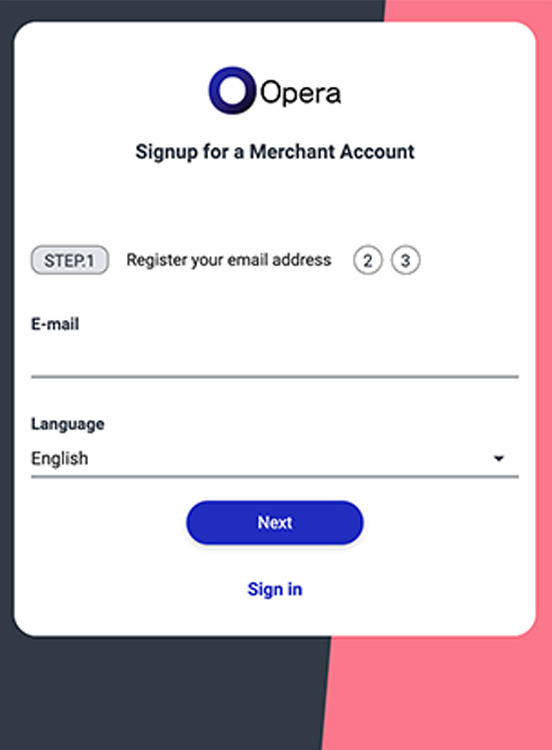
Enter your email address in the new registration form
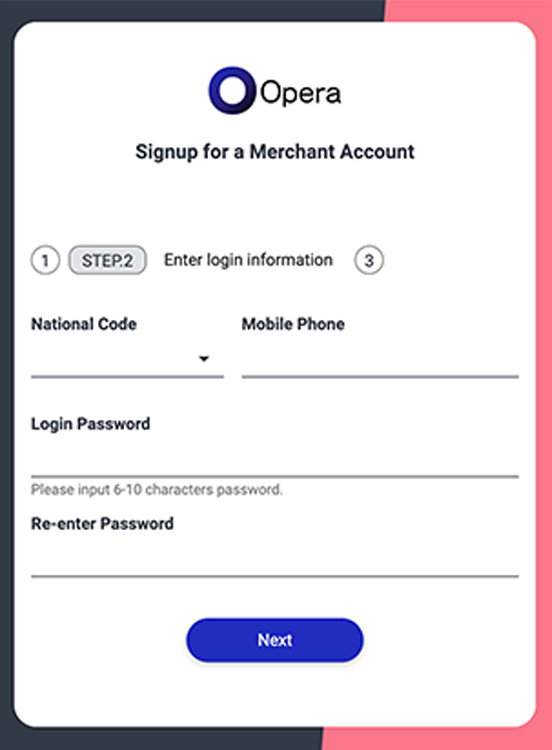
Open the link in the confirmation email and enter your login information and name
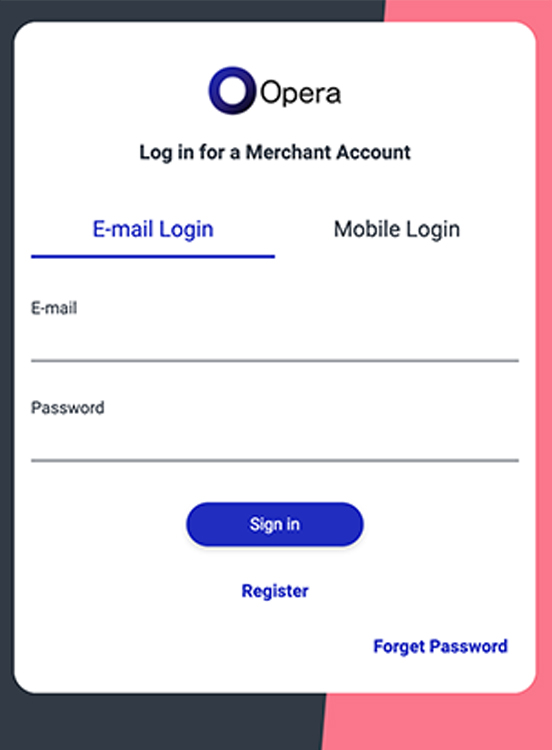
Log in to the wallet from the client area
Identity Verification (eKYC) Steps
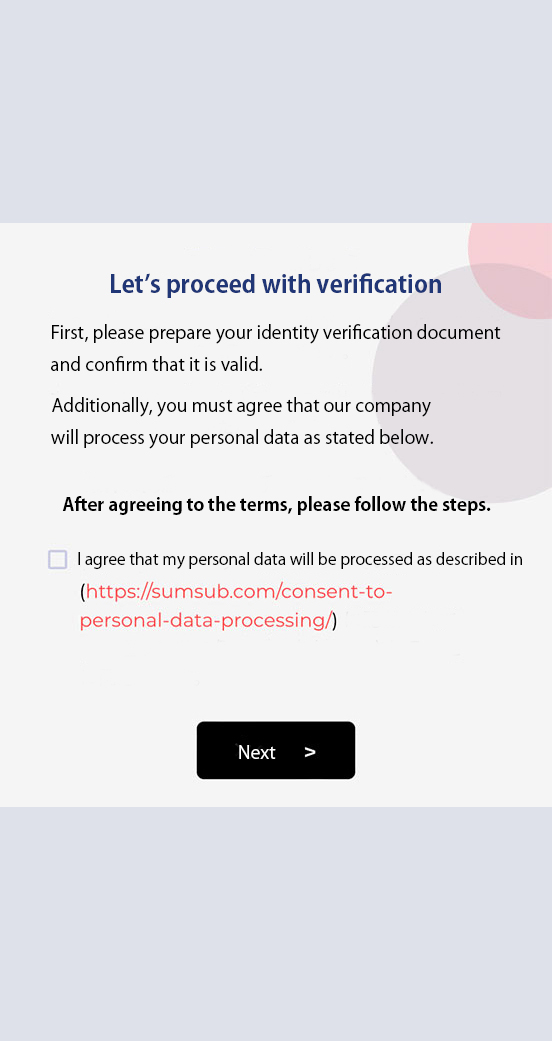
Select “Perform Identity Verification” to move to the Opera KYC screen
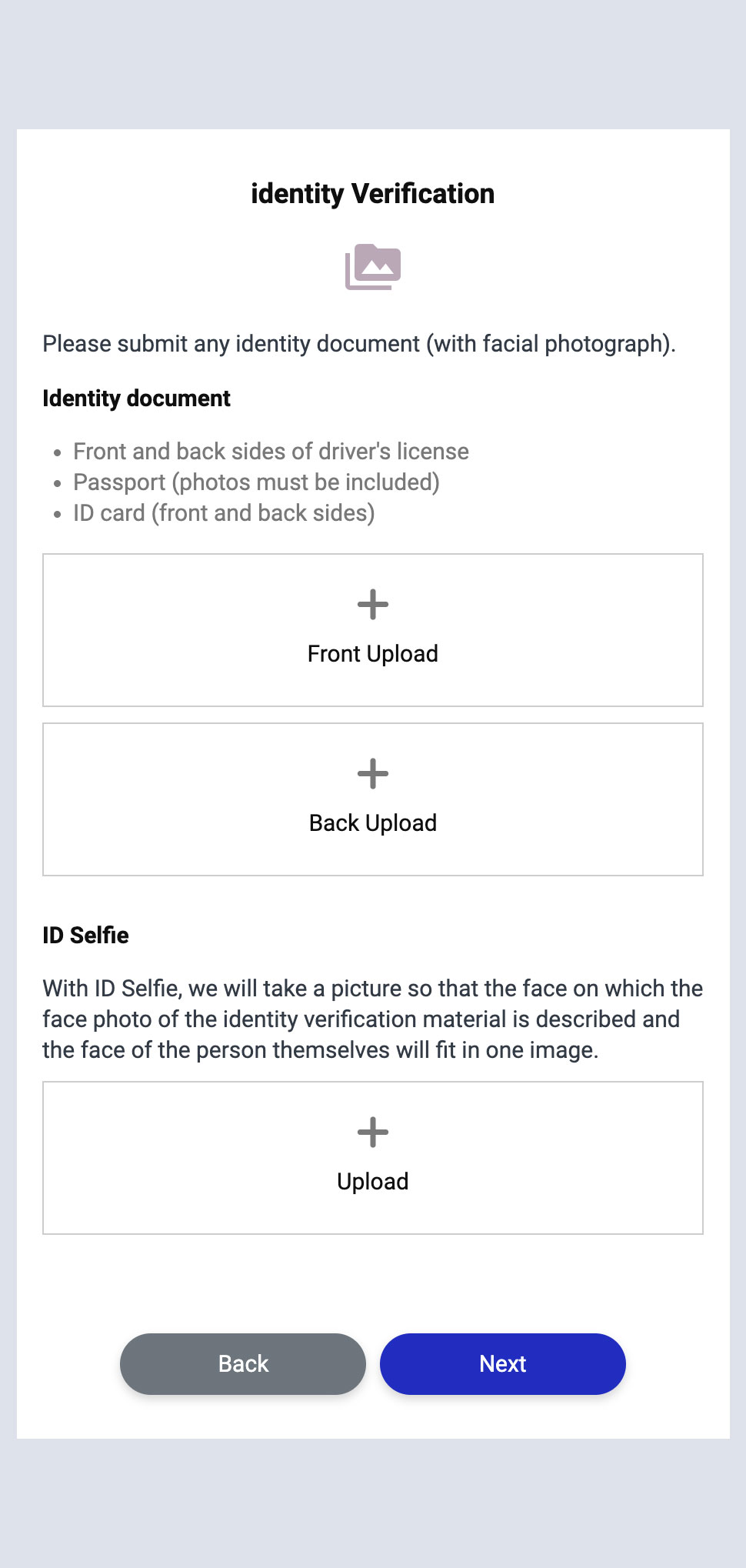
Upload identity verification documents
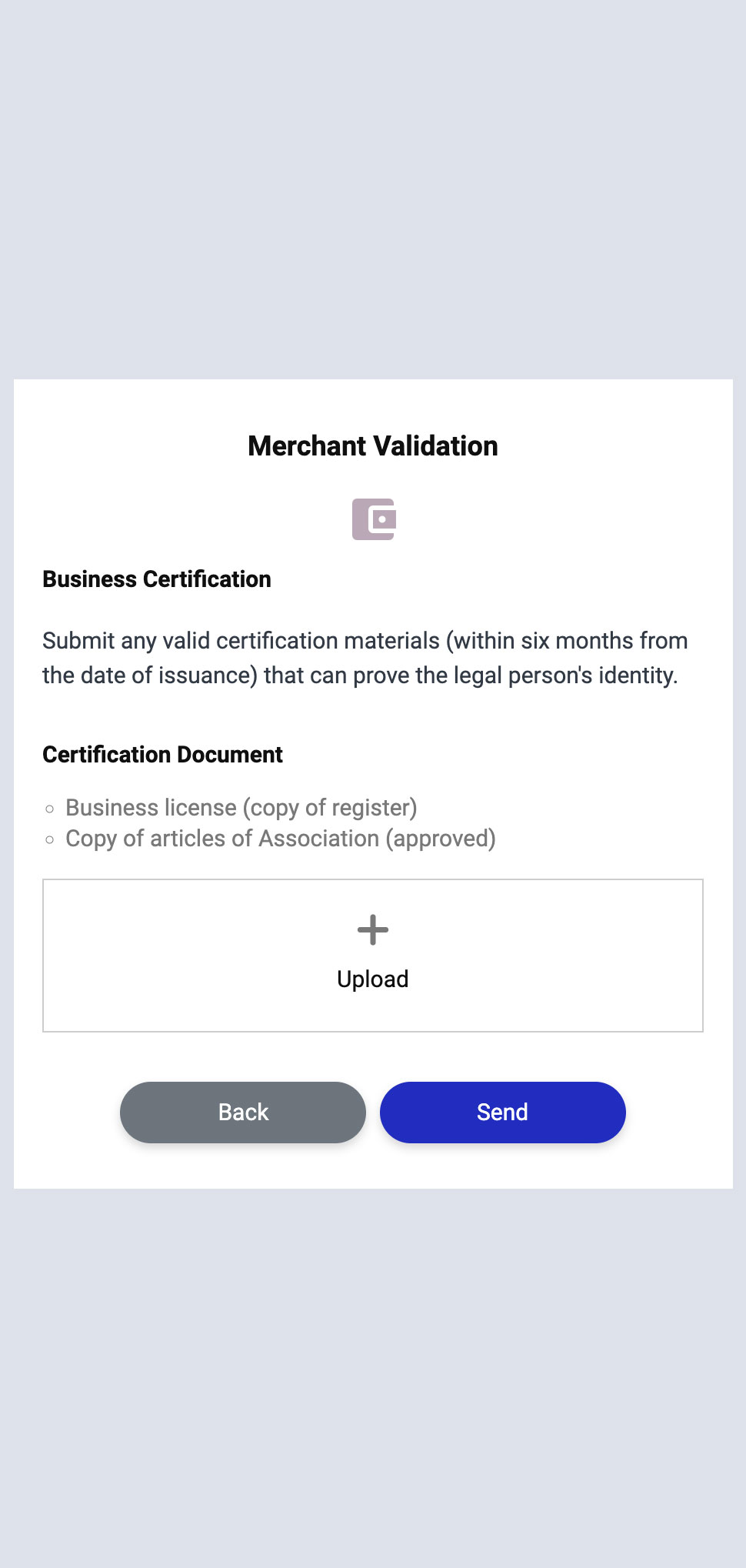
Upload corporate verification documents
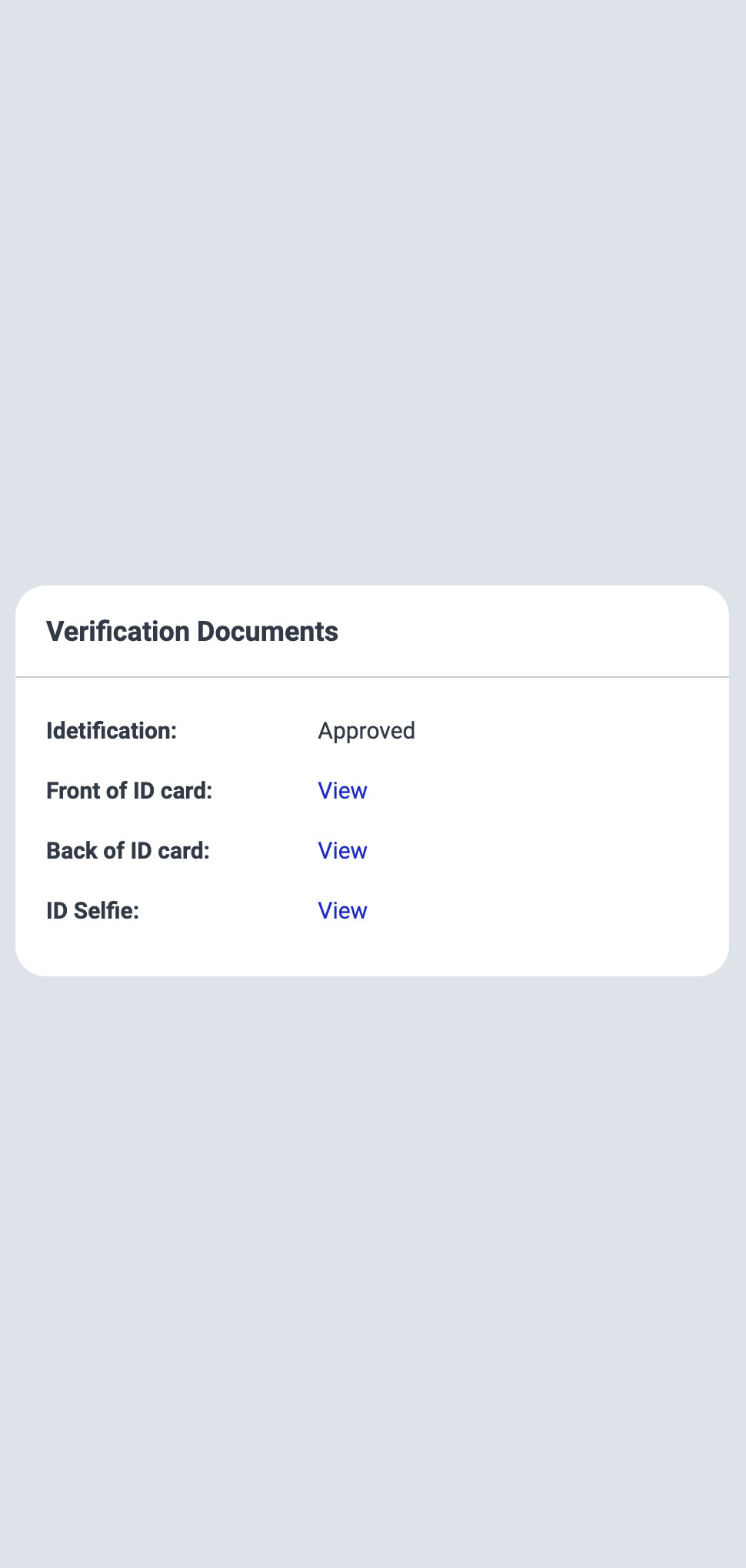
Once approved, your identity verification status will be updated to “Approved”.